MarkMyWords: AI Editing with Track Changes
MarkMyWords is a new Microsoft Word add-in that brings AI-assisted editing directly into your document. It was developed by Jack Lyon, author of Wildcard Cookbook for Microsoft Word and creator of Editor’s ToolKit Plus through Editorium.
MarkMyWords uses Anthropic’s Claude to review and edit text in Word based on built-in instructions or your own instructions. The suggested edits appear as tracked changes, so you can review every change and decide what to keep or delete. Text is sent to Anthropic’s secure servers for processing, but Anthropic does not use it for training and does not store it permanently online. MarkMyWords works on both PCs and Macs.
Note that there are other tools that bring AI-assisted editing directly into your document: Draftsmith and, as of very recently, Anthropic’s Claude for Word (if you have a paid Claude subscription). However, MarkMyWords offers something else: more control, including the ability to manage your own AI usage costs, choose specific editorial presets, and add custom instructions.
What Sets MarkMyWords Apart?
MarkMyWords works differently from tools like PerfectIt or Editor’s ToolKit Plus. Those tools rely on macros, searches, and predefined checks to flag issues for you to review. MarkMyWords, by contrast, uses AI to read the text, makes revisions as tracked changes, and explains those changes in comments (if you want it to). You can also tell it which style guide to follow, specify the level of editing, and even write instructions.
All of the major AI tools let you upload a Word document and ask for edits. The problem is that many of them do not handle important Word features well, such as quotation marks, footnotes, endnotes, and comments, while tracking changes. MarkMyWords stands out because it works directly inside Word and preserves those elements while editing.
A Quick Tour of MarkMyWords
MarkMyWords is pretty remarkable; let me show you why.
After you install MarkMyWords, it appears as a self-explanatory ribbon:

MarkMyWords Ribbon
From the ribbon, you select “Run MarkMyWords,” which opens a window. As you’ll see in the screenshot below, you can select an editing preset (e.g., Light Editing, Heavy Editing, Custom). You can also choose specific options (e.g., Spelling, Grammar, Punctuation) and a style guide (CMOS, APA, None, etc.).
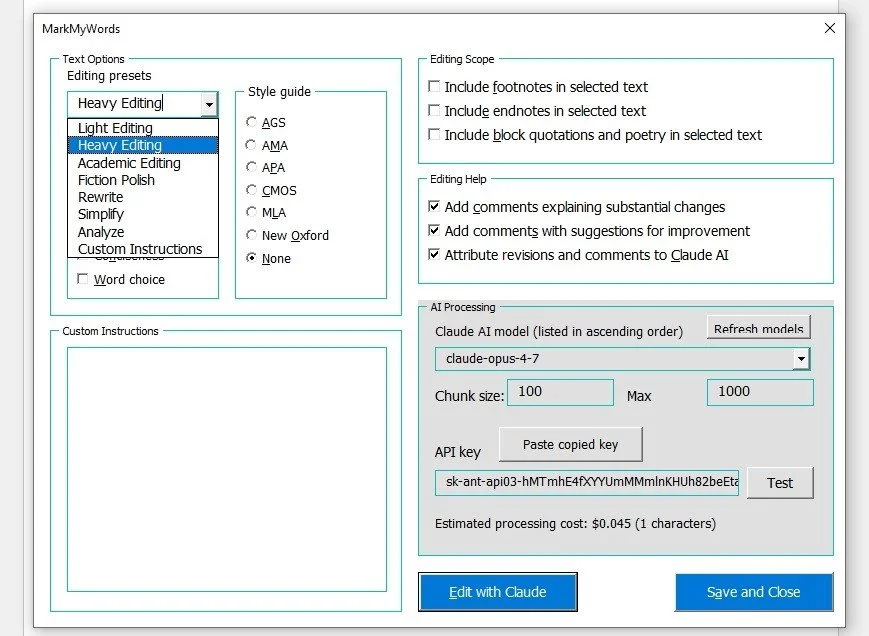
MarkMyWords Options
In the bottom right-hand corner of this window, you’ll see the AI processing information (more about this later). For now, just know that you have the option to choose the version of Claude you want to use. I recommend using the higher-level model for more complicated tasks. Note that the more powerful the model you choose, the more expensive it will be (but it is very inexpensive in general).
Let’s try it with a paragraph containing several errors. Here is a short paragraph with errors common in ESL writing:
The importance of sunscreen is very much significant in the protection against harmful UV radiations. Many researches have been conducted by scientists in field of dermatology, and they show that sunscreen can help prevent skin cancer and other skin damage. The reason is because UR rays from the sun are penetrating to skin cells and they are causing DNA mutations.
I chose the “Heavy Editing” preset from the drop-down menu, selected “Edit with Claude,” and then let it do its work. Here are the results:
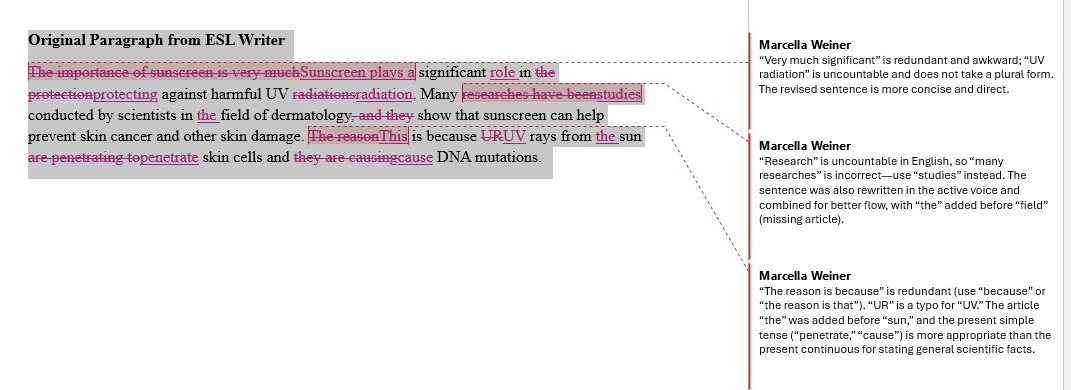
“Heavy Edit” of Paragraph from ESL Writer
Note the comments. I did not add them—Claude did, and I think they are pretty good! You can easily delete or keep any comment or edit; it works just like Word’s Track Changes feature.
Not convinced yet? Let’s look at another example. Here is a paragraph with common CMOS errors, which I’ve underlined:
Before our trip, James’ family made a list of swimsuits towels and sunscreen. They read an article called “How To Plan a Stress-Free Vacation in the Mountains” and followed its advice, but they still booked a child-friendly pet-friendly cabin near the Smith-Jones trail. The guide, which listed only the beaches with lifeguards, said this: be sure to pack early, and confirm your reservations. On the morning of departure, James - who always forgets something - ran back inside for his phone wallet and hat.
For this paragraph, I selected CMOS in the style guide box and also chose Spelling, Grammar, and Punctuation instead of an editing preset.
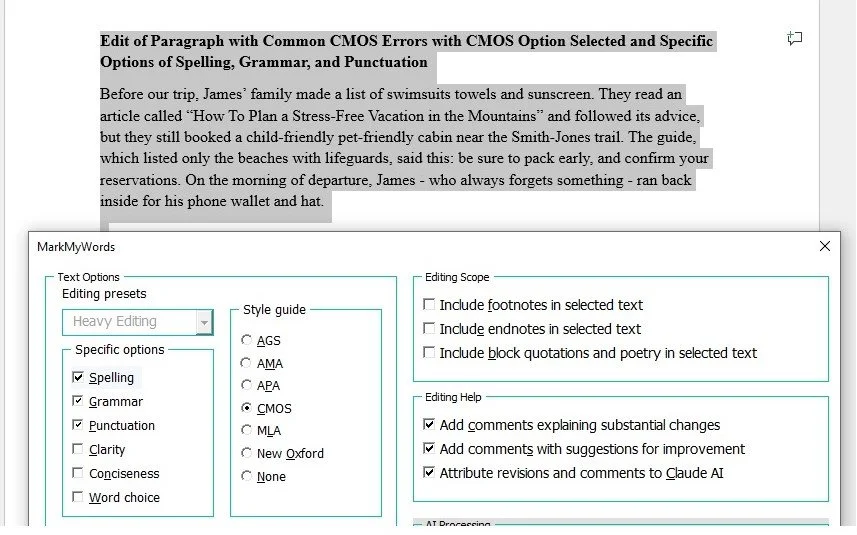
Spelling, Grammar, Punctuation Presets with CMOS Style
After I clicked on “Edit with Claude” and waited a few seconds, this is what I got:
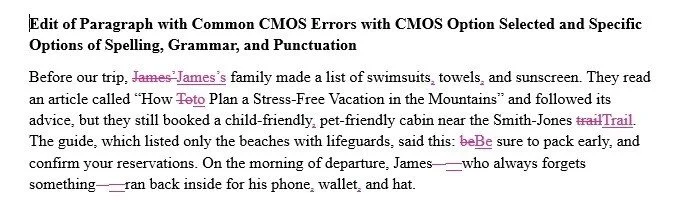
Edited Paragraph with Common CMOS Errors
I might have changed the hyphen in Smith-Jones to an en dash if Smith and Jones were two separate people (see CMOS 6.85), but, otherwise, good results.
Want More Control? Try Custom Instructions
Still not convinced? Let’s take a look at the Custom Instructions option. Perhaps I have some text that I just want to fact-check. I can add my fact-checking prompt to the Custom Instructions space:
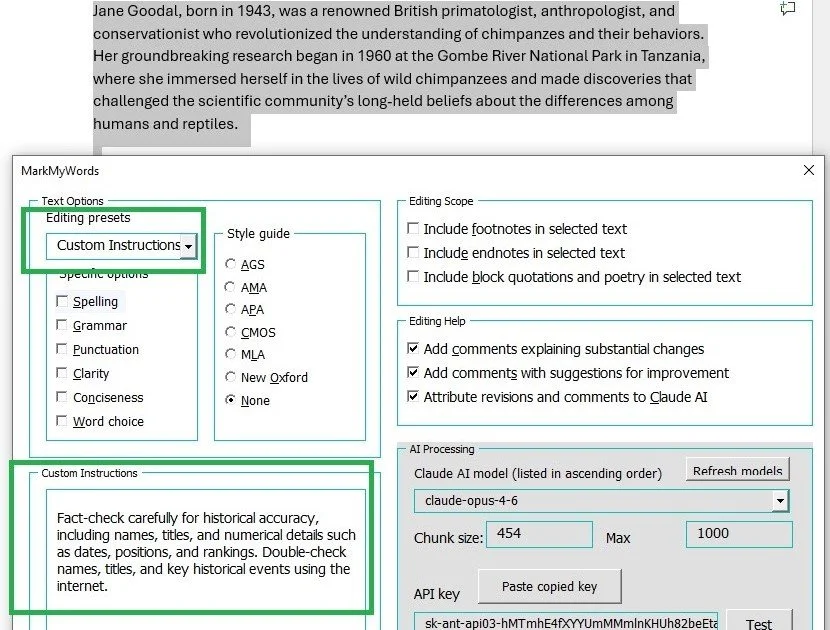
Custom Instructions for Fact-Checking
As you see above, I selected the “Custom Instructions” option and then simply pasted in my fact-check prompt before selecting “Edit with Claude.” And here are my results:
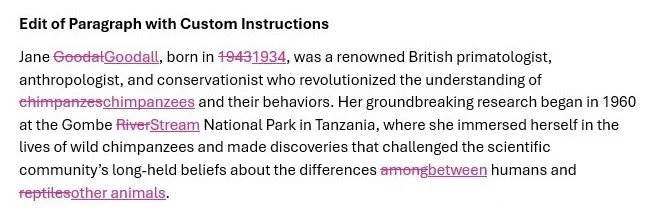
Results of Fact-Checking
I’m impressed! Note that I even snuck in a little typo (misspelled chimpanzes), which it corrected. If you include Custom Instructions, they will be added to the preset edit or specific options you’ve selected. If you want to only use your Custom Instructions, simply select the Custom Instructions preset and de-select everything else.
To see an example of MarkMyWords editing and comments in an actual Word document, check out Jack Lyon’s sample.
Let’s Talk About Cost
As of May 18, 2026, MarkMyWords is free for the first 45 days and then costs a one-time fee of $69.95 after that.
You do pay each time Claude processes your text through your Anthropic API account (the instructions are clear on how to set that up), not through the MarkMyWords app itself.
You pay only for the text Claude actually processes, based on the number of tokens used, so simply opening MarkMyWords or viewing the cost estimate does not cost anything.
The total can vary depending on how much text you select and which Claude model you choose. MarkMyWords shows an estimated cost before you run it (in the AI Processing box), and if you want to cap your spending, you can set usage limits in your Anthropic API account. It is very inexpensive; $10 will last you quite a while. A 70,000-word manuscript would probably cost you a couple of dollars.
Final Thoughts
MarkMyWords takes a few minutes to set up and understand, but I think the learning curve is worth it. I especially appreciate that it was created by someone who understands how editors actually work. The ability to choose edit levels, add custom instructions, track your changes, and manage your own usage costs gives you a level of control that many AI editing tools still don’t offer. For editors who want to experiment with AI-assisted editing inside Word, MarkMyWords is worth a try.
How I Used AI to Help Me with This Blog Post
Sample text: I asked ChatGPT to help me write the sample text with errors.
Alternative text: I had ChatGPT write the alt-text for the images.
Final polish: I ran this post through MarkMyWords for a last-pass edit to catch any typos—and it did!
If you enjoyed this post, please consider signing up for my blog (see the Editing with AI subscriber bar at the bottom of the page). You’ll be notified when the next post is up and of tips and classes I think are useful. I promise never to misuse your information.