Claude for Word: Tracked Changes Meet AI
Tracked changes (or the lack thereof) are one of the biggest challenges I have had with AI tools. I want to be in charge of my edits: I want to tell the large language model (LLM) exactly what I want it to do, and I want to see every suggested change in Word so I can either accept or reject it.
I might want an AI tool to fact-check a passage, make a list parallel in structure, or format a reference list according to Chicago Manual of Style (CMOS). Whatever the task, I don’t want to copy and paste revised text back into my document, or, even worse, retype text.
What Is Claude for Word?
Claude for Word is an add-in that brings Anthropic’s Claude directly into Microsoft Word. Instead of uploading a document to Claude’s website or copying text into a chat, you can ask questions and edit selected text while staying in your Word document. Most important for editors, Claude can make its suggestions as tracked changes that you can review one by one.
The Claude many people already know is the chatbot you use on the web or in an app. Claude for Word uses the same AI within your open Word document, where it can preserve surrounding styles, numbering, and formatting.
Why Use It Instead of Just Claude (the LLM)?
The main advantage is simple: You can stay in Word. There is no copying text into a browser, pasting it back, or trying to retype the changes Claude made. When you use tracked changes mode, the revisions appear in your Word document, where you can accept or reject them. And the tracked changes are attributed to you—not Claude.
This makes Claude for Word useful for targeted editorial tasks. You can select a passage, give Claude a specific instruction (which Claude calls skills), and keep control of the final edit.
How Do I Get Started?
To install Claude for Word, go to the Claude for Microsoft 365 listing in Microsoft Marketplace and select “Get it now.” Then open Word, activate the add-in from Home > Add-ins on Windows or Tools > Add-ins on a Mac, and sign in with your Claude account.
Claude for Word also works in Word on the web. If you use Word through an organization, your Microsoft 365 administrator may need to install or approve the add-in. Check your version first; the add-in requires Word on the web or Microsoft 365 Word (Version 2205 or later on Windows; 16.61 or later on Mac). It does not run on perpetual-license Word 2016 or 2019, or on Word for iPad or Android, and it works only with .docx files.
Although there is no separate charge for the add-in, you do need a paid Claude plan to use Claude for Word. As of July 22, 2026, Claude for Word is available with Pro, Max, Team, and Enterprise plans. The Pro plan—the least expensive individual option—is $20 a month or $200 a year.
After you install Claude for Word, you’ll find it on the Home tab of the ribbon, at the far right.
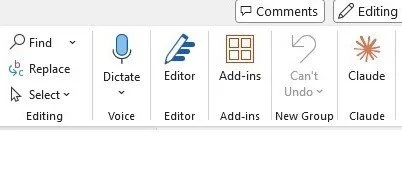
Claude Icon on Ribbon
What Does It Look Like When I Open Up My Document?
When you open Claude for Word, it appears in a pane on the right side of your document. You can continue working in Word while using the pane to ask Claude questions, select a skill, and review its notes and suggested changes. Here’s a screenshot of an opened Word document with the Claude for Word pane on the right side. The paragraph has lots of errors, which I’ll have Claude for Word help me with later in this blog post.
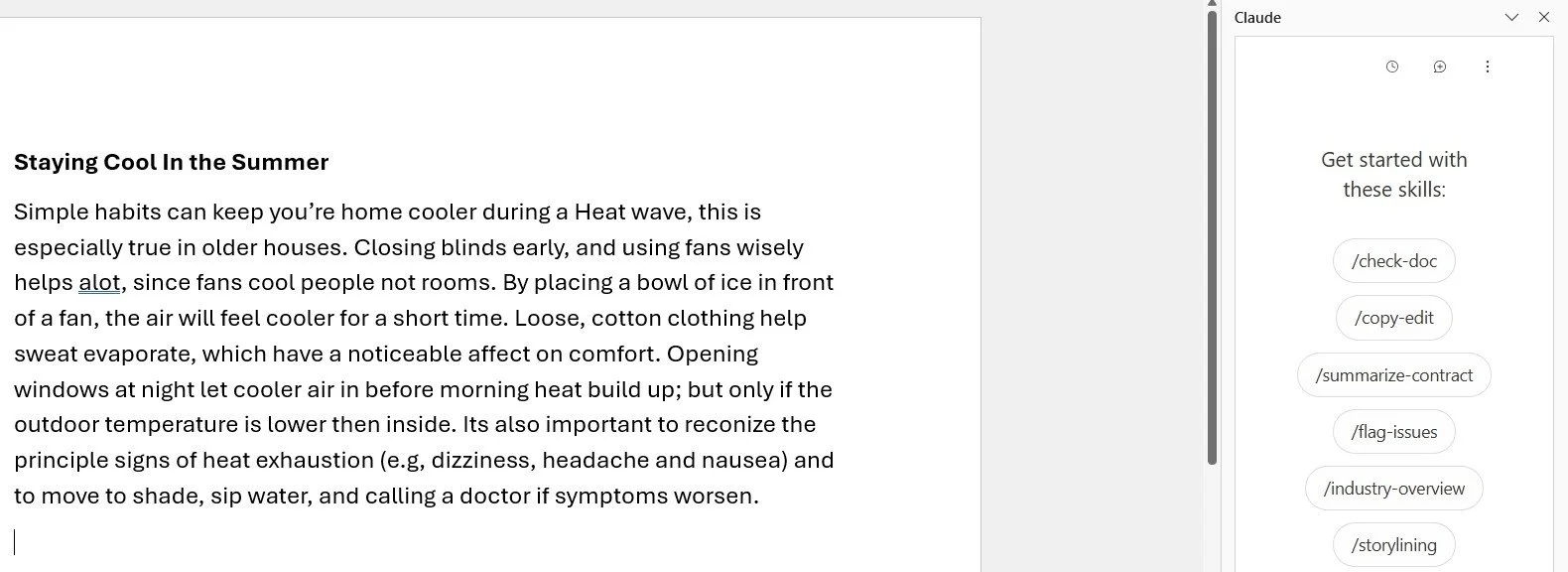
Word Document with Claude for Word
What Are Skills?
If you look at the screenshot above, you’ll see the text Get started with these skills on the right side. Skills in Claude for Word are prebuilt, reusable workflows you can activate by typing a slash command (e.g., /copy-edit) instead of writing out a full prompt each time.
A skill is a packaged set of instructions that Claude loads when the skill is selected, so it approaches the task consistently. (The instructions are the same every time; the output can still vary a bit from run to run, as with any LLM.) Think of each skill as a canned, well-engineered prompt: Click it or type it, and Claude runs that prompt on your document or selected text.
When you open Claude for Word for the first time, it offers skills to get you started. These come from Anthropic, not from your Claude account. You'll notice they lean toward contracts and business documents (e.g., /summarize-contract), since Claude for Word was built with legal and finance work in mind. Any skills you create yourself live in your Claude account settings, reachable from the Create and manage skills link at the bottom of the skill list (I'll come back to that later in this post). Since the Claude for Word add-in is still in beta stage, this starter list may look different in the near future; here’s what I saw in July 2026:
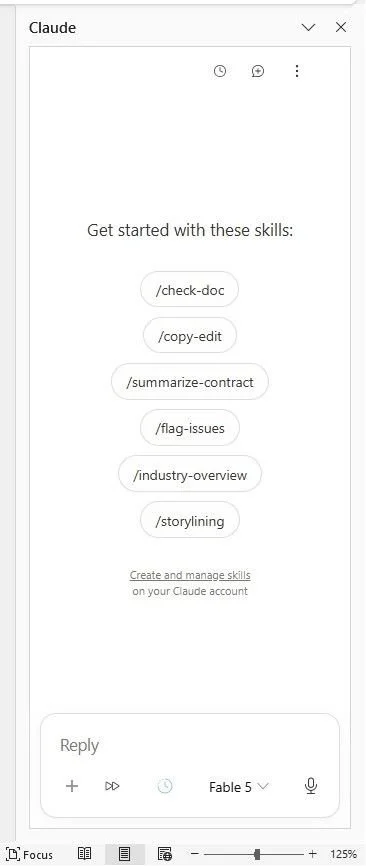
Preset Skills in Claude for Word
How Does This Work?
Let’s start with the paragraph with lots of errors. I chose this topic because, when I was writing this blog post, it was in the upper 90s with more humidity than you get in Florida—and I live in Michigan.
Errors are underlined in red.
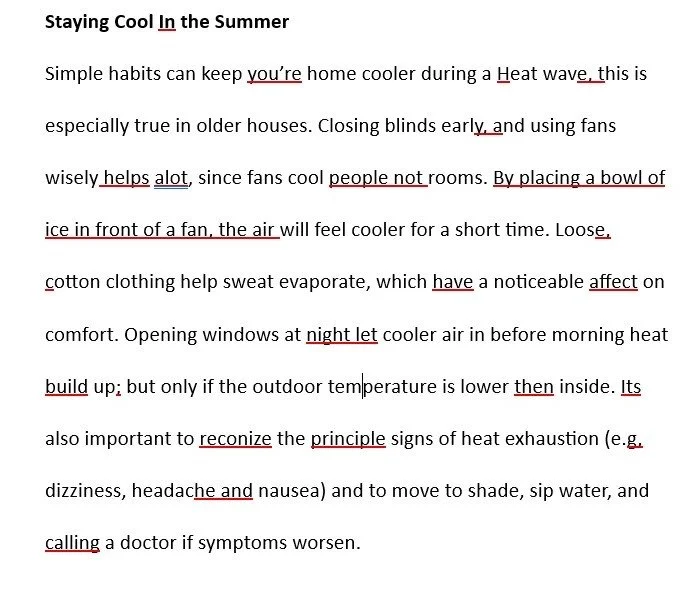
Paragraph with Lots of Errors
I open my Word document with this paragraph, turn on Track Changes, and then select the /copy-edit skill. I’ve included a screen recording of it in action. Note that the screen recording is a little over a minute, but I think it is worth watching the whole thing because you see how the tool “thinks” and decides its changes.
Silent video (1 minute and 6 seconds): Claude for Word copyedits a paragraph and displays its suggestions as tracked changes that I can accept or reject.
Pretty cool, right? Note that it missed one error; it should have lowercased the “In” in the title for this paragraph. This shows you that LLMs are certainly not perfect. (When I ran it again, it did correct that error.)
Now let’s look at its results a bit closer. Look, in particular, at the text boxed in green on the right (Claude’s notes) and then the text underlined in green in the paragraph on the left:
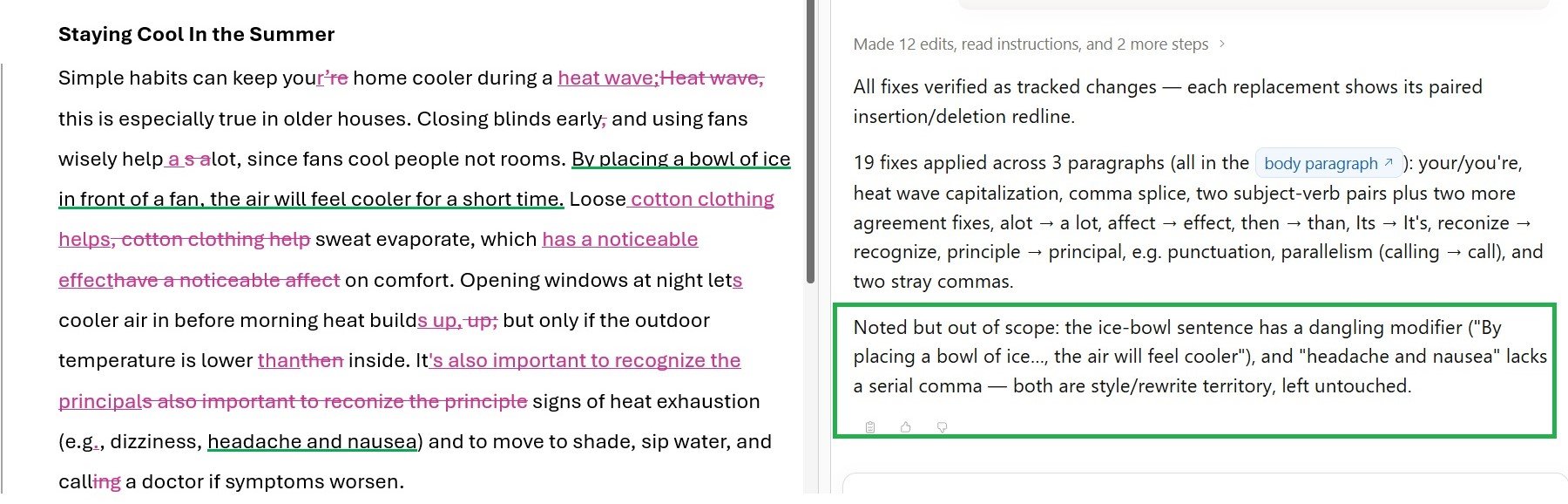
Claude for Word’s Edited Paragraph
In my test, Claude for Word’s preset copyedit skill did not correct the dangling modifier or the serial comma, but it did point them out. And you could certainly create your own skill and add those instructions to it, which brings us to the next question.
What If I Want to Create My Own Skill?
The Create and manage skills link below the starter list (see the circled text in the screenshot below) lets you build custom skills of your own. For example, a /cmos-citations skill could apply CMOS author-date formatting rules to a reference list. Custom skills work the same way as the built-in ones.
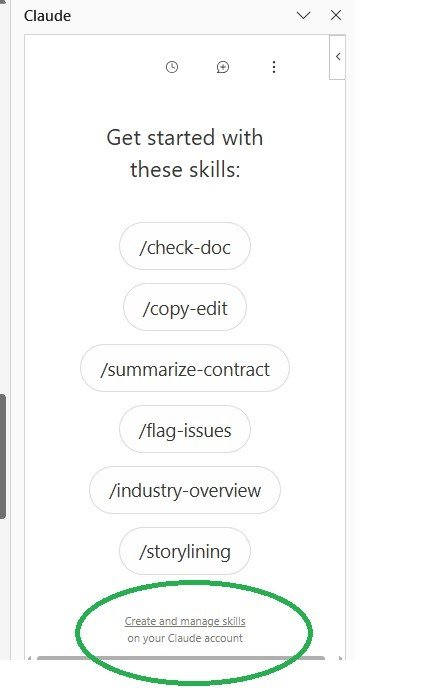
Create and Manage Skills in Claude for Word
Let’s say, for example, I want to build a skill that makes a list parallel. Going back to the paragraph about how to stay cool, I’ve reworked it so the text is in a list. As you can see in the following screenshot, the bolded words that introduce each item are not parallel in structure:

List with Faulty Parallelism
I open my Word document, click on Claude for Word in my ribbon, make sure Track Changes is on, and then select Create and manage skills. I then select Add and then Write skill instructions:
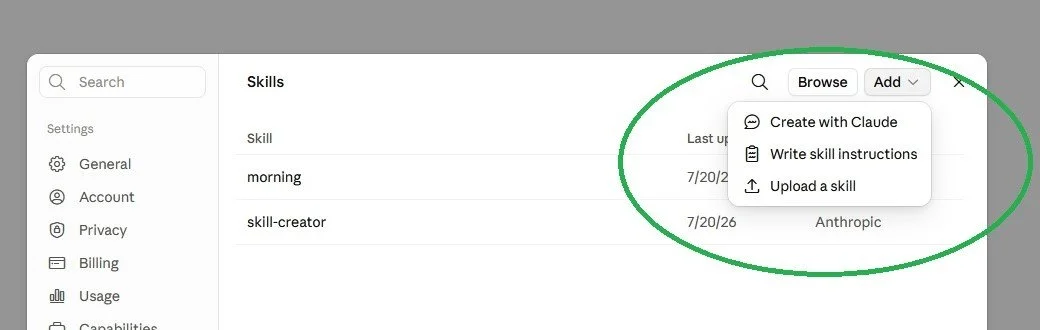
Adding Skill Instructions
This brings me to the following screen, where I fill in the information about my skill:
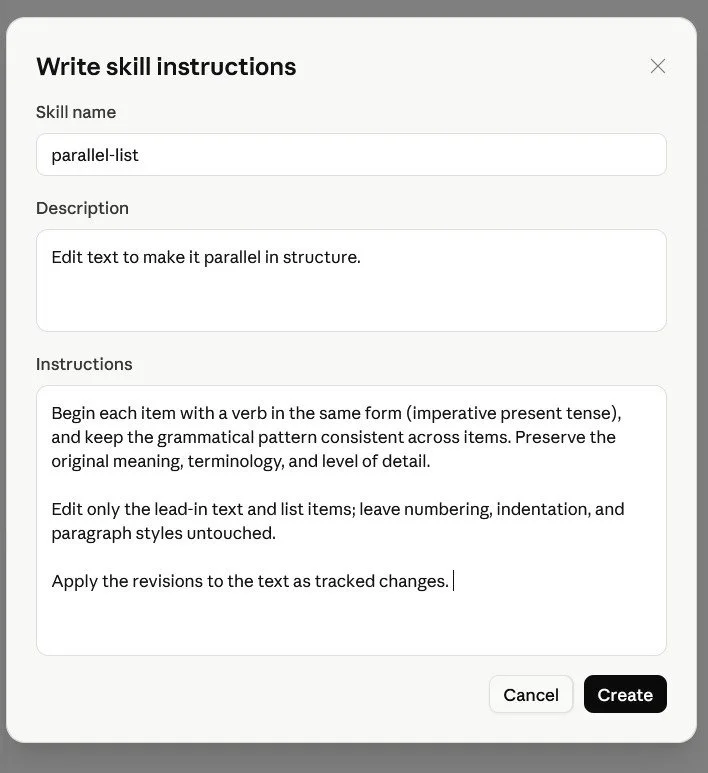
Skill Instructions
The instructions are the most important part of this skill; as you can see in the screenshot above, I’ve included very specific directions in my instructions. After I’m done with writing this skill, I click on Create.
I then select /parallel-list as shown in this screen recording:
Silent video (23 seconds): Claude for Word revises a list about staying cool in the summer so that each item begins with an imperative verb and follows a parallel structure.
Let’s take a closer look at the finished product.

Claude for Word’s Edited List
Claude for Word did what I asked it to do, and now I can accept or reject the changes or revise what’s there. And, yes, in my testing, the tracked changes have my name on them—something worth knowing, since anyone reviewing the file later cannot tell Claude’s suggested edits from your own.
How Secure Is Claude for Word?
As of July 22, 2026, Claude for Word is still in beta. That matters because the add-in is still being tested and refined, which means that features may change and some administrative features are still limited.
Also, note that Claude for Word processes your document on Anthropic’s servers, so this is not a no-upload workflow. Anthropic says inputs and outputs are deleted from its backend within 30 days, and your chat history is stored locally in your browser rather than on Anthropic’s servers, but the document content itself does leave your machine. If your client or organization prohibits sharing files with AI tools, that restriction applies here—you should not use Claude for Word for that work.
These cautions should be a reminder to use Claude for Word the way we should use any AI tool: Keep your own judgment and expertise in charge. Claude for Word might make certain tasks more efficient, but it does not make you—the editor—optional.
How I Used AI to Help Me with This Blog Post
Tech help: I didn’t know how to put screen recordings in my blog post; I used ChatGPT to help me figure that out. ChatGPT also helped me reduce the file size of the videos.
Alternative text: I had Claude write the alt-text for the images.
Final polish: I ran this post through editGPT for a last-pass edit to catch any typos.
If you enjoyed this post, please consider signing up for my blog (see the Editing with AI subscriber bar at the bottom of the page). You’ll be notified when the next post is up and of tips and classes I think are useful. I promise never to misuse your information.